Custom Shapes
Shapes are useful to differentiate between types in Rarry. There are built-in shapes, but you might want to add your own shapes.
Inside your extension descriptor, add a shapes key:
Rarry.registerExtension({
  id: "myShapeExtension",

  shapes: {
    // we'll add stuff here later
  },
});
To add a new shape, add an entry for your type. The key should match the name you will use as the connection check:
shapes: {
  yabadaba: (height, extra, up, right, svgPaths) => {
    return "";
  },
},
Parameters
You can see that there's a lot of parameters, we will explain them here.
| Parameter | Type | Description |
|---|---|---|
height | number | The clamped height of the block (will not exceed the renderer's max height) |
extra | number | The overflow height if the block exceeds the maximum allowed height |
up | number | Vertical direction (1 = down, -1 = up) |
right | number | Horizontal direction (1 = right, -1 = left) |
svgPaths | object | Utility object containing SVG path helpers used by the renderer |
Creating a Shape
Custom shapes are defined using SVG path data. The easiest way to create them is by using an external SVG path editor.
For this tutorial, we'll use SVG path editor.
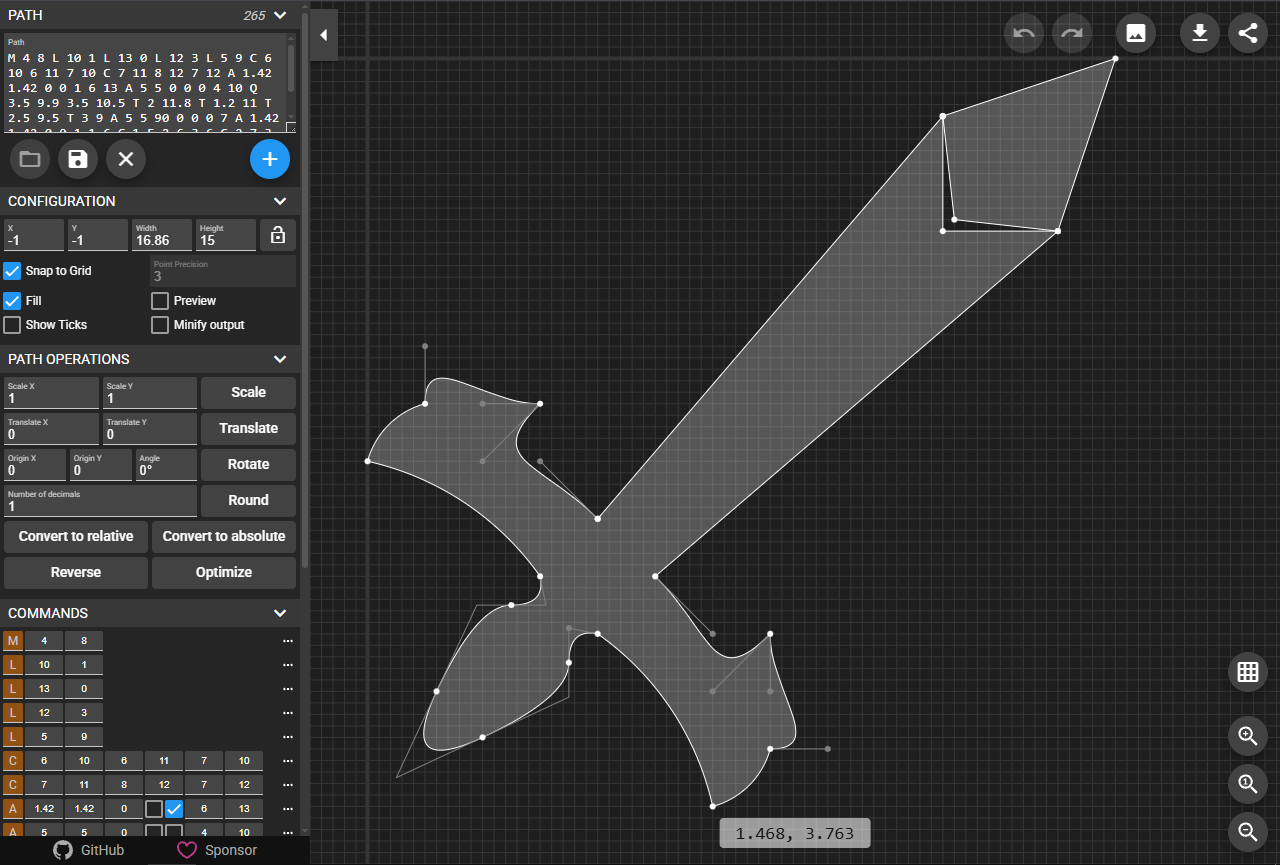
Designing the Shape
Focus on the left side of the shape, since Blockly connections are built from paths.
- Open the SVG path editor.
- Clear the path by clicking on the button with an X.
For this next part, we'll use a template, but you might want to create your own later on.
For now, insert m 0 0 l -5 10 l 5 10 into the Path input at the top left.
Understanding the Path
The path must travel exactly height + extra units vertically in total.
The renderer uses the path you return to draw both the plug (on output blocks) and the socket (on input blocks). If your path travels too far or not far enough vertically, the shape won't align with the block's edge and things will look broken or offset.
For our template path m 0 0 l -5 10 l 5 10, the total vertical travel is 10 + 10 = 20. That means it was designed for a block that's exactly 20 units tall. We need to make it scale.
Converting to Code
Your shape function needs to return an SVG path string. You can build this string however you like, but raw template literals work fine.
shapes: {
  yabadaba: (height, extra, up, right, svgPaths) => {
    return `l -5 10 l 5 10`;
  },
},
This will compile, but it won't scale with the block and it will ignore the up and right directions. Let's fix both of those things.
Scaling with Block Height
Replace the hardcoded 10 values with expressions based on height and extra. The total vertical distance across all your lines must add up to height + extra.
A simple way to split the height evenly is to use halves:
yabadaba: (height, extra, up, right, svgPaths) => {
  const half = (height + extra) / 2;
  return `l -5 ${half} l 5 ${half}`;
},
Now the shape will stretch to match the block no matter how tall it is.
height is the portion that fits within the renderer's maximum. extra is anything beyond that. In most cases you can treat height + extra as the total height and split it however you need.
Handling Direction
Right now the shape always draws downward and always juts to the left. But the renderer calls your function in four orientations to draw both sides of both the plug and the socket. That's what up and right are for.
Multiply any vertical movement by up, and any horizontal movement by right:
yabadaba: (height, extra, up, right, svgPaths) => {
  const half = (height + extra) / 2;
  return `l ${-5 * right} ${half * up} l ${5 * right} ${half * up}`;
},
Your function should always use up and right. If you skip this, the shape will only look correct in one orientation and appear mirrored or flipped elsewhere.
Adding Horizontal Padding
You'll notice the shape above just cuts directly into the text. You can add a small horizontal line at the start and end to create a bit of indentation from the block edge. This is optional but gives the shape a cleaner look:
yabadaba: (height, extra, up, right, svgPaths) => {
  const depth = height / 4;
  const half  = (height + extra) / 2;
  return (
    `h ${depth * right}` +
    `l ${depth * right} ${half * up}` +
    `l ${-depth * right} ${half * up}` +
    `h ${-depth * right}`
  );
},
Breaking this down:
| Segment | What it does |
|---|---|
h ${depth * right} | Steps horizontally into the block |
l ${depth * right} ${half * up} | Diagonal line going out and down |
l ${-depth * right} ${half * up} | Diagonal line going in and down |
h ${-depth * right} | Steps back horizontally to the edge |
The path must return to the same x-offset it started at by the time it finishes. If it doesn't, the block's outline won't close correctly.
Final Result

Rarry.registerExtension({
  id: "myShapeExtension",

  category: {
    name: "My Shape Extension",
  },

  shapes: {
    yabadaba: (height, extra, up, right, svgPaths) => {
      const depth = height / 4;
      const half = (height + extra) / 2;
      return (
        `h ${depth * right}` +
        `l ${depth * right} ${half * up}` +
        `l ${-depth * right} ${half * up}` +
        `h ${-depth * right}`
      );
    },
  },

  blocks: [
    {
      type: Rarry.BlockType.OUTPUT,
      id: "yabadaba",
      text: "yabadaba",
      outputType: "yabadaba", // must match the shape name above
    },
  ],

  code: {
    yabadaba: () => "yabadaba",
  },
});
Any block in your extension that uses yabadaba as its outputType (or as a value field's type) will now render with this custom connector shape.