Themes
A theme is your editor colors and your block category colors, saved together. The Themes tab in the settings lets you switch between presets, fine-tune every color and share your own theme.
Presets
Pressing a preset (Light, Dark, High contrast, Solarized, Ocean, Rose, Pastel) replaces all of your current colors and block colors. Use "Export" first if you want to keep them.
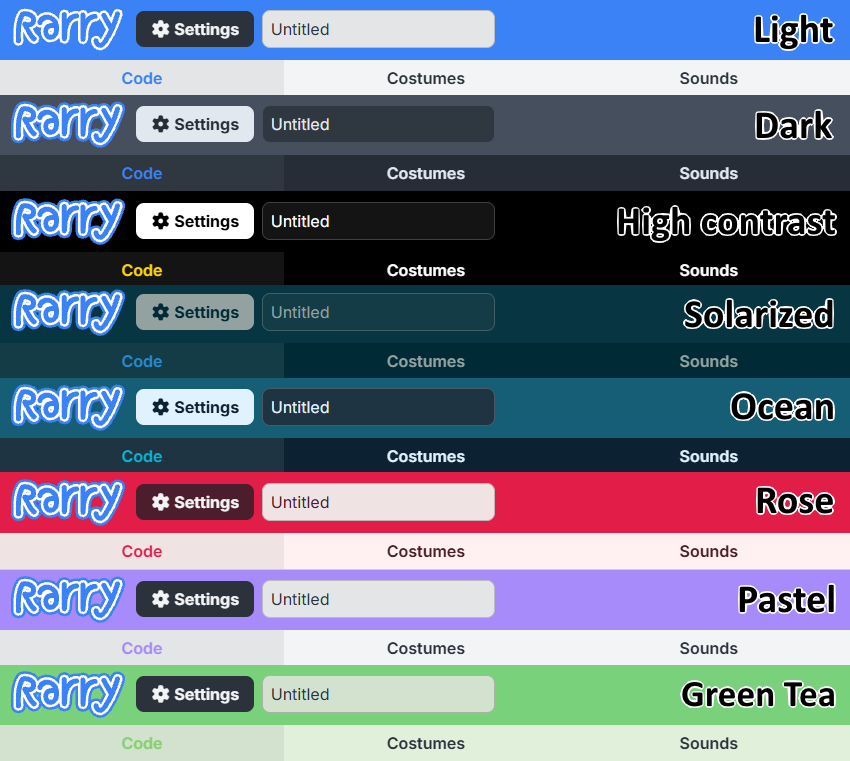
Customizing colors
Below the presets you can change the editor colors (toolbar header, text, primary, danger and background) and the color of each block category. The arrow button next to a color resets it to the default.
Exporting a theme
Press Export to save your current theme as a rarry-theme.json file. The file looks like this:
{
  "format": "rarry-theme",
  "version": 1,
  "name": "My theme",
  "dark": true,
  "colors": {
    "primary": "#268bd2",
    "color": "#002b36"
  },
  "blockColors": {
    "motion_blocks": "#4c97ff"
  }
}
| Key | Description |
|---|---|
dark | true to use the dark editor theme, false for the light one. |
colors | Any of toolbar-header, dark (text color), primary, danger and color (background color). Missing keys use the default. |
blockColors | Category colors, keyed by block style such as motion_blocks or looks_blocks. Missing keys use the default. |
Colors must be written as #rrggbb.
Importing a theme
Press Import and pick a theme .json file. If the theme has a mistake (for example an invalid color) nothing is changed and you get an error message.
Importing replaces your current colors and block colors.